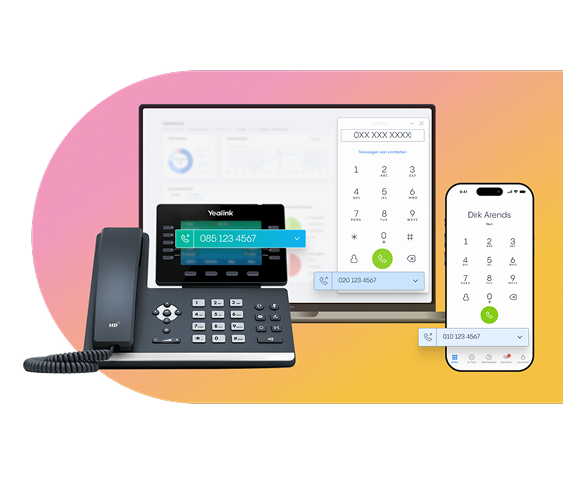
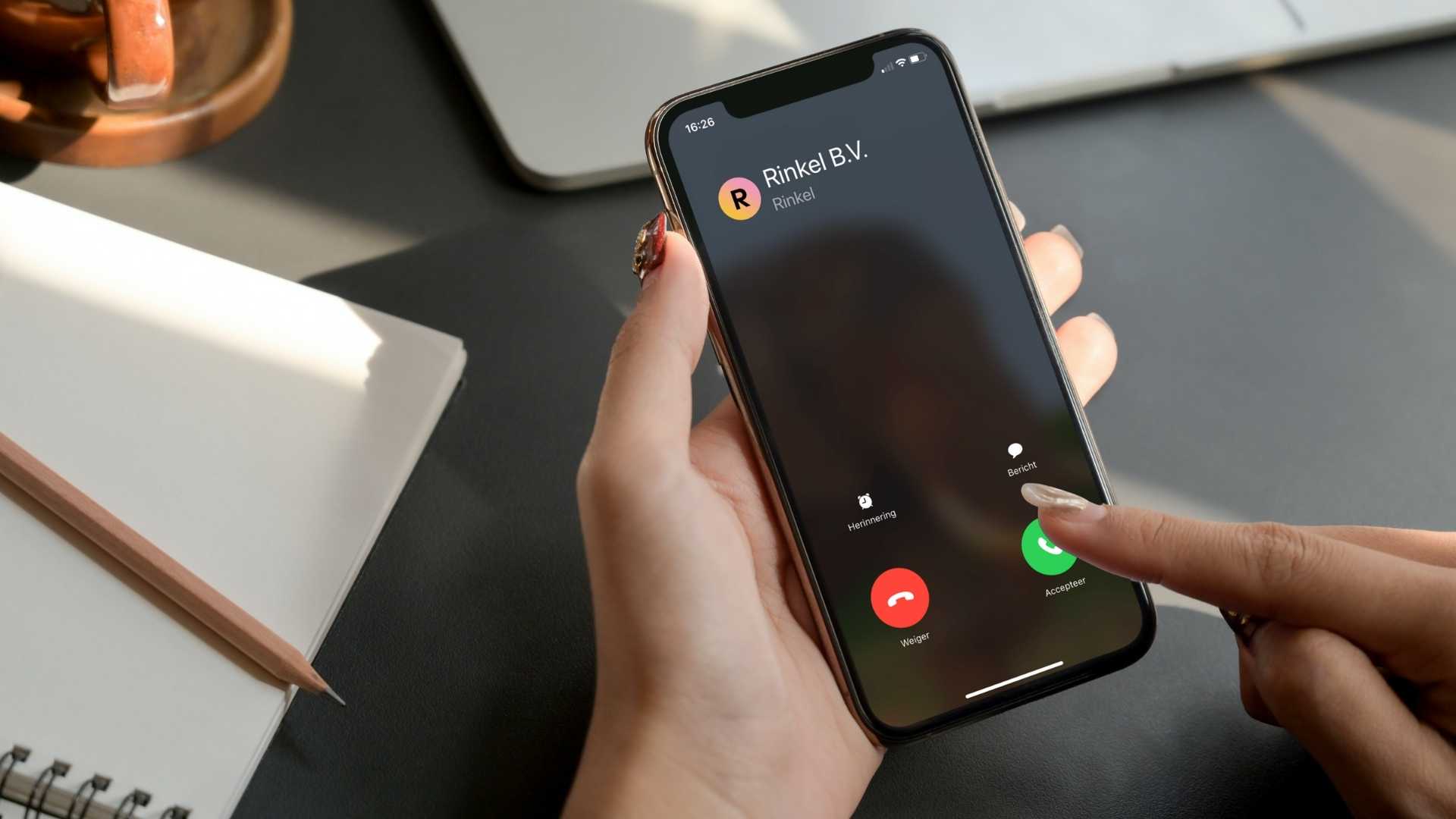
Caller ID — sometimes called your caller name or number display — is what shows up when you ring someone. You call a customer, a partner or a supplier from your business landline. They don't have your number saved. So how do you make sure they can still see it's your company on the line?
Because here's the thing: a wrong business name popping up on an incoming call looks sloppy. And it gets worse when your landline number is flagged as spam or a potential scam, because people simply won't pick up. Let's be real, we ran into this one ourselves. After we rebranded from Bereik to Rinkel on 17 May 2022, people still saw "Bereik.io" on their screens whenever we called.
We'd already changed our Google Business Profile name to Rinkel, but "Bereik.io" stubbornly stayed put. And we couldn't work out why. Surely that was meant to fix it? After a fair bit of digging, we cracked it. And we're happy to pass on what we found. Read on.
How do I change my own caller ID?
Good news: it's a doddle. For Samsung, at least. Thanks to Hiya, you'll never have an unknown number staring back at you again.
We reckon it works much the same for other Android phones, but for Samsung we can pretty much guarantee it. Samsung and Hiya have a partnership built around "Smart Call" technology.
Tracing an unknown number
Here's the gist. Hiya keeps an international database of companies and their phone numbers, basically a big pile of structured data. That database is linked up with Samsung, which checks every incoming call against it. When there's a match, Samsung shows the company name instead of the number that's calling.
The nice part: this feature is switched on by default on your Samsung. That's why Android users tend to see business names more often.
Hiya's system is there to help you and everyone else identify calls and steer clear of unwanted ones: spam, suspected fraud, that sort of thing. And it works a treat for businesses, too.
Worth a mention: Google has a partnership with Hiya as well. Most likely to top up the database with the details companies enter in their Google Business Profile.
Updating your caller ID with Hiya in 4 steps
- Go to this form in Hiya's FAQ.
- Select "Register your business information with Hiya".
- Fill in every field on the form and send it off.
- You'll be asked for proof—a link to your company website that lists the number is usually enough.
For us, it took about two working days for our caller ID to switch from Bereik.io to Rinkel.
What if my number gets flagged as spam or fraud?
Same drill. Fill in Hiya's form, but this time select "I have a problem with the information shown for my phone number" and complete the fields.
What about caller ID on iPhone?
You can use Hiya on an iPhone too, but only if you've downloaded the app from the App Store. And since hardly any iPhone users have it installed, it won't help your customers and partners on iPhones. They'll keep seeing your national number or local number if they haven't saved you in their contacts.
Want to see which numbers are ringing you? Then it's well worth grabbing the Hiya app yourself.
Apple does have a sort-of caller ID feature, mind you. When a call comes in, your iPhone scans your emails to check whether the number crops up in any of them. That's how Apple's automatic caller ID works.
You do have to grant it access first. Head to Settings > Phone > Caller ID and make sure it's switched on.
That said, even with it on, it's no guarantee your iPhone will recognise business numbers. Speaking from experience.